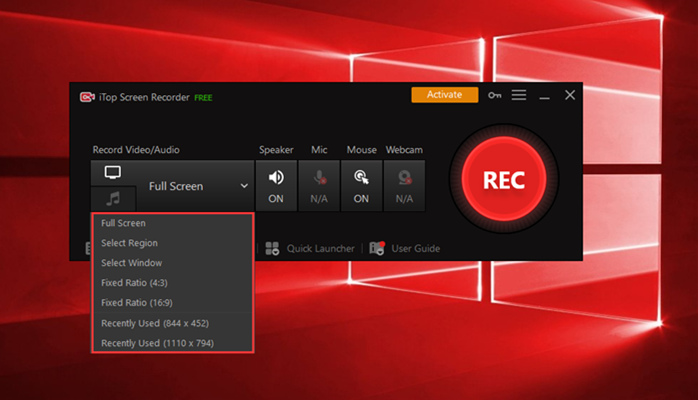
iTop Screen Recorder is a popular and easy-to-use screen recording software that allows users to record their computer screens with audio. In addition to screen recording, it also offers powerful editing tools that enable users to edit their videos in a professional way. One of the most important features of iTop Screen Recorder is its ability to cut and trim videos. In this article, we will discuss how to cut a video using iTop Screen Recorder and how to record audio with it.
Part 1: How to Cut a Video with iTop Screen Recorder
Cutting a video using iTop Screen Recorder is a simple and straightforward process. Follow the steps below to learn how to do it:
Step 1: Install iTop Screen Recorder Visit the official website of iTop Screen Recorder and download and install the software on your computer. Once installed, launch the program.
Step 2: Open the video file you want to edit Click the “Edit Video” button on the home screen of iTop Screen Recorder to launch the video editor. Select the video file you want to edit and drag it to the timeline at the bottom of the screen.
Step 3: Cut the video To cut the video, move the playback marker to the point where you want to start the cut, and click the “Split” button. Then, move the playback marker to the end of the segment you want to cut and click the “Split” button again. You can now delete the unwanted segment by selecting it and pressing the “Delete” button.
Step 4: Save the edited video After you have finished cutting your video, click the “Export” button to save your edited video to your computer.
How to Record Audio with iTop Screen Recorder

iTop Screen Recorder also allows users to record audio along with their screen recordings. Follow the steps below to learn how to record audio using iTop Screen Recorder:
Step 1: Launch iTop Screen Recorder Launch iTop Screen Recorder on your computer and select “Record Screen” from the home screen.
Step 2: Select audio source Click on the “Audio Input” icon on the recording toolbar and select the audio source you want to record. You can choose to record system audio, microphone audio, or both.
Step 3: Start recording Click the “Record” button to start recording your screen and audio. You can pause and resume the recording as needed.
Step 4: Stop recording and save the video After you have finished recording, click the “Stop” button to stop the recording and save the video to your computer.
Conclusion
iTop Screen Recorder is a powerful and easy-to-use screen recording software that offers advanced video editing tools, including the ability to cut and trim videos. Additionally, it allows users to record audio along with their screen recordings. With its simple and intuitive interface, iTop Screen Recorder is the perfect solution for anyone looking to create high-quality screen recordings with audio.